Vizard vs Opus Clip vs Submagic
These three tools get compared a lot in “AI clipper” roundups, but they are not identical. Opus Clip and Vizard lean clip-discovery from long uploads. Submagic leans captions and short-form polish. We ran all three on the same 45-minute lecture on 21 Oct 2026. The scorecard below reports only what we checked and says what we didn’t.
Quick answer
We tested all three on 21 Oct 2026 with the same 45-minute public-domain lecture, free plans or trials, default settings and 9:16 output. Vizard was fastest (about 3.5 minutes) and gave 10 face-tracked clips with few boundary problems, but free exports are watermarked and 720p. Opus Clip produced the most clips (35) but took about 20 minutes and needed more checking. Submagic had the most detailed caption editor, but its trial would not export. Pick Vizard for fast, clean clips on a free plan, Opus Clip for volume, and Submagic for caption styling if you will pay for a plan.
At a glance (roles, not rankings)
| Vizard | Opus Clip | Submagic | |
|---|---|---|---|
| Primary job (typical) | Long video / webinar → AI clip candidates | Long video → auto clips & short-form packaging | Captions, styles and polish for short vertical video |
| Best starting point | You have a lesson or Zoom upload and want clip ideas fast | You want a clip-first workflow from one long file | You already have rough cuts (or short takes) and need captions that pop |
| Course-creator fit | Webinars, replays, teaching dumps | Same long-form → shorts path | Reels / TikTok / Shorts finishing |
| Try | Vizard | Opus Clip | Submagic |
Plans, credits and export limits change. Prices in our scorecard are what each product showed on 21 Oct 2026 (USD); check the pricing page before you buy.
Choose Vizard if…
- Your source is a long webinar, Zoom class or lesson upload
- You want a clip-first UX and are willing to compare it head-to-head with Opus on the same file
- You care about turning teaching dumps into candidate shorts before fine editing
Choose Opus Clip if…
- You already know the “upload long → get clip suggestions” pattern and want that baseline
- You are evaluating whether to stay or switch (see also Opus Clip alternatives)
- You want one place that proposes hooks from a full recording, then verify quality yourself
Choose Submagic if…
- Captions, emoji timing and short-form styling are 80% of the work
- You already have cuts from a clipper, CapCut or a phone edit and need polish
- Your bottleneck is “looks native on TikTok / Reels,” not discovering moments in a 60-minute file
When you might combine tools
A common stack: generate candidate clips in Opus Clip or Vizard, then finish captions in Submagic. That only pays off if each step saves real time versus one tool alone. We will time “lesson → five publishable verticals” in each solo path before recommending a two-tool setup.
Our hands-on test (21 Oct 2026)
Setup. Same input for every tool: the first 45 minutes of a public-domain university lecture (720p, one lecturer, slides and some wide classroom shots). Free plan or free trial, no card, default settings, 9:16 vertical output. Times are wall-clock from submitting the job to clips being ready.
- Vizard (free plan): Any length, default captions, emojis and keyword highlight on, model v1.
- Opus Clip (7-day free trial): Auto model and genre, length 0–3 min, auto headline on, auto zoom off, “Font Shuffle” captions.
- Submagic (trial): Magic Clips on the same 45-minute file with defaults (face tracking on). Caption test on a 60-second segment of the same lecture with the default “Hormozi 1” style, switched to 9:16 by hand.
| Tested 21 Oct 2026 | Vizard | Opus Clip | Submagic |
|---|---|---|---|
| Plan tested | Free plan (60 credits/month, 1 credit = 1 min); 45 credits used | 7-day free trial (90 credits); 45 credits used | Trial (12 credits); Magic Clips used 8 |
| Processing time | About 3.5 min | About 20–21 min | About 5.5 min (Magic Clips) |
| Clips produced | 10 on the free plan (a banner offers 10 more if you upgrade) | 35 | 31 |
| Clip lengths | 0:36–1:20, most 45–60 s | 0:19–2:37, mostly 30–60 s | 0:40–1:33 (the lengths we could read) |
| Clean start / end | Transcript spot check of 8 of the 10 clips (1 played): 5 start and end on a complete thought; #2 has a weak ending, #9 starts mid-thought, #10 unclear | 3 clips spot-checked: 2 clean, 1 starts mid-sentence. Some clips stitch together non-adjacent parts of the lecture | Not checked |
| Speaker framing in 9:16 | Face-tracked; the speaker fills the frame. Slide segments are letterboxed; some wide room shots | Speaker well framed when on screen, but several clips use the slide on a blurred background or wide audience shots | Magic Clips: face tracking on by default; thumbnails mixed speaker close-ups, slides and at least one audience-centred shot. Single-video caption project: static centre crop with no speaker tracking (empty frame at 0:09.6, slide text cut off at 0:16) |
| Caption accuracy (spot checks) | Matched speech in the frames we checked; minor transcript errors (e.g. “Principal Plankin’s platform”) | No obvious errors in the transcript and export frame we checked; word timing not checked in playback | 60-second segment: tool reports 98.6%; first word misheard (“Tution”), rest clean to 0:49; timing in sync over the ~10 s we played; uncertain words underlined; emojis added automatically |
| Free-plan watermark / export limits | “made with Vizard.ai” watermark; 720p export (our clip: 720×1280); 10-min export length; 3-day storage; subtitles as TXT only | OpusClip logo top-left on trial exports; exported 1080×1920 (upscaled from our 720p source); 1–2 min render | Export blocked on the trial (“Choose a plan to export it”), so we have no file and the watermark is unknown |
| Cheapest paid plan to remove the watermark (USD, as shown 21 Oct 2026) | Creator: $14.50/month billed yearly ($174/year), listed as “no watermark”. Monthly price not recorded | Starter: $15/month billed monthly (150 credits), lists “Remove Watermark” | Starter: $19/month, or $12/month billed yearly (1080p, videos up to 2 min). This is the cheapest plan that exports; its plan card doesn’t mention watermarks, so watermark removal is unconfirmed |
What we did not check
- We did not watch every clip in full. Clip boundaries and captions are spot checks, as described in each cell.
- Submagic: clip boundaries and captions inside Magic Clips, and any export (paywalled on the trial).
- Filler removal, horizontal export, paid-plan features, and other footage types such as webcam talking heads or Zoom gallery view.
- One input video and one run per tool, so your results may differ.
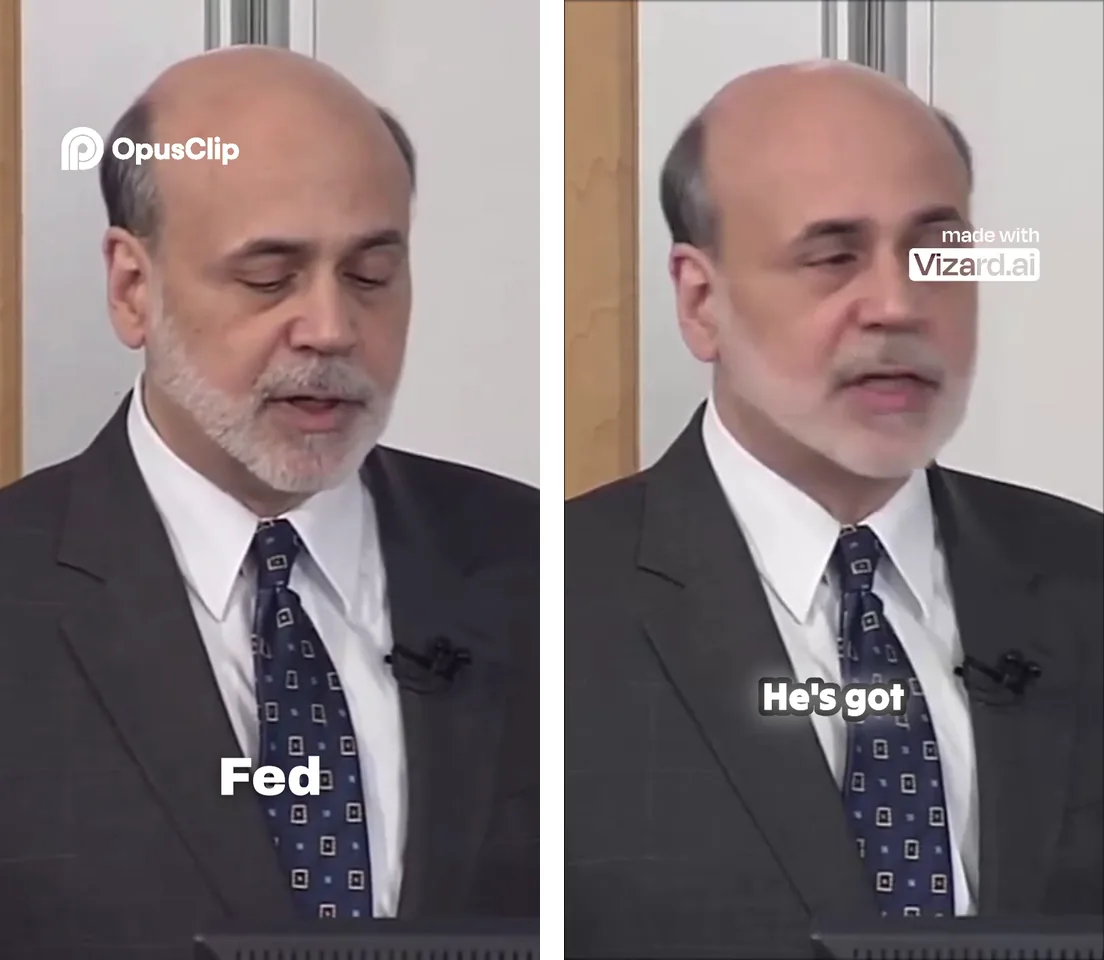
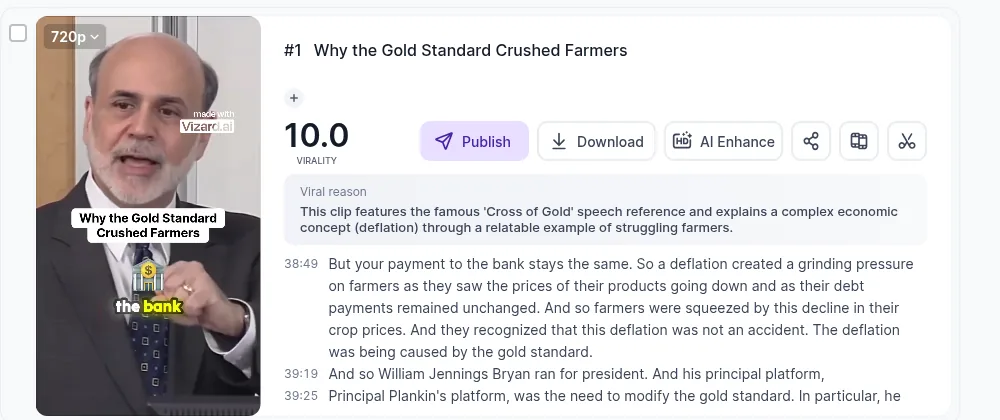
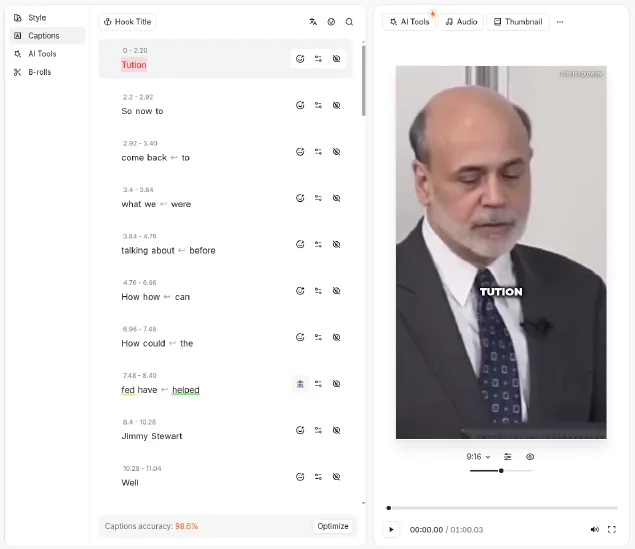
Sample footage: “The Federal Reserve and the Financial Crisis, Part 1” (2012), Board of Governors of the Federal Reserve System. Public domain. Not affiliated with or endorsed by the Federal Reserve.
Tasks and limits are described on how we test.
Decision tree (no scores required)
- Need moments found inside a long file? Shortlist Vizard and Opus Clip; run both on one recording.
- Already have cuts and hate caption busywork? Start with Submagic.
- Technical jargon or non-US accents? Caption accuracy will decide more than brand, so log fixes per tool.
- Budget only allows one subscription? Pick by bottleneck (discovery vs polish), not by affiliate blog rankings.
Our pick after testing
For a course creator turning a recorded lecture or webinar into vertical clips:
- Fast, clean clips on a free plan: Vizard. It was the fastest run in our test (about 3.5 minutes for a 45-minute lecture), with face-tracked framing and the fewest boundary problems we spotted. The trade-offs: a watermark, 720p exports and only 10 clips unlocked on the free plan.
- Volume: Opus Clip. It gave 35 clip candidates from one lecture, with auto headlines. But it took about 20 minutes, several clips were framed on slides or the audience, and 1 of the 3 we checked began mid-sentence. Starter ($15/month) removes the watermark.
- Caption styling: Submagic. It had the most detailed caption editor we used (word-level timing, flagged uncertain words, styled presets), and Magic Clips finished in about 5.5 minutes. But you need a paid plan to export anything, and its single-video 9:16 crop did not follow the speaker.
We have referral links for all three tools, so commissions did not tip this. Affiliate links never decide our picks. This was one lecture and one run per tool on 21 Oct 2026, so run your own recording through your top choice before paying.
Related workflows: Zoom → Shorts · Webinar → clips · Best AI clip makers
Affiliate disclosure: LessonBench may earn a commission when you buy through some links on this page, at no extra cost to you. This never changes our picks. Commissions never decide rankings; tools without affiliate programs stay if they fit. We don’t publish fake reviews or invented results.